> ## Documentation Index
> Fetch the complete documentation index at: https://docs.mightynetworks.com/llms.txt
> Use this file to discover all available pages before exploring further.
# How Do I Create a Post in My Mighty Network?
A **Post** is a simple way to share a short update, images, a video, or a link with your members. You can also add a file.
Posts show up in the [Feed](https://docs.mightynetworks.com/for-hosts/setting-up-your-network/what-is-the-feed-and-how-does-it-work) of a Space by default
## Turning Posts On or Off
To change this setting, go to: Space > Gear Icon > Features > Manage. Here, you can:
* Allow everyone to make Posts, or
* Limit Posts to Hosts and Moderators.
## How to Create a Post
**On web:** go to your [Feed](https://docs.mightynetworks.com/for-hosts/setting-up-your-network/what-is-the-feed-and-how-does-it-work) and start a Post
**On mobile:** open the Mighty Networks iOS or Android app and tap the **pencil icon** at the bottom.
## You can add or create:
* A single photo or up to 6 photos
* A video file
* A video link (YouTube, Vimeo etc..)
* A file
* A [poll](https://docs.mightynetworks.com/for-hosts/content-and-messaging/how-do-i-create-polls-questions-in-my-mighty-network)
* Add a background image
* GIF
* Emojis
## Adding Text to Images
If you post a single image, you can add text either:
* **Below the image** (like a caption), or
* **On top of the image** (making it the background).
Tap or click the corner prompt to switch between these options.
## Image Sizes
* **21:9** (horizontal), or
* **3:4** (vertical).
The **3:4 ratio** works best if you want the image as a background. If not, any size will display as uploaded.
Note: very wide or tall images may get cropped, but the full image shows if someone clicks on it.
## Formatting
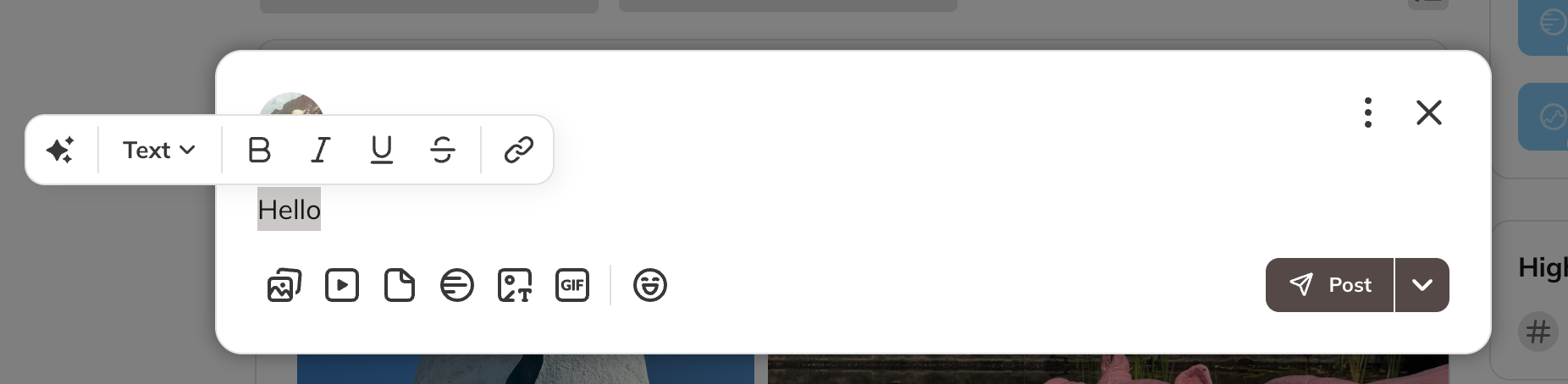
You can bold, italicize, add links and more by highlighting the text.
 ## Comments
You can turn comments **on or off** for any post.
**Who can control comments:**
* Hosts and Moderators: on any post in their Network or Space
* Members: only on their own posts
**How it works:**
* Open the three-dot menu on a post
* Toggle comments on or off
* Turning them off hides existing comments, but they come back if you turn comments back on
## Hashtags, GIFs, and Emojis
You can use [**hashtags, emojis, and GIFs**](https://docs.mightynetworks.com/for-members/engage-and-interact/how-do-i-use-hashtags-in-my-mighty-network) in Posts, Chat, Articles, or comments.
## Hashtags
* Anyone can make hashtags.
* Type “#” plus your text (letters, numbers, or underscores).
* No spaces or special characters (&, \$, etc.).
* You can use more than one hashtag per post.
* Hashtags show up in a dropdown as you type.
Clicking a hashtag shows all posts across the Network that use it (unless the content is in a Space the member can’t see).
**Note:** If the hashtag is in a Space a member can’t access, it won’t show up for them.
To learn more about how hashtags work in your Mighty Network, including how to highlight them in a Space, [check out this article](https://docs.mightynetworks.com/for-hosts/content-and-messaging/how-do-hashtags-work-in-my-mighty-network).
## GIFs and Emojis
You can add GIFs and emojis to posts, comments, [chat](https://docs.mightynetworks.com/for-hosts/content-and-messaging/how-does-chat-work-in-a-mighty-network), or [Articles](https://docs.mightynetworks.com/for-hosts/content-and-messaging/how-do-i-create-an-article-in-my-mighty-network).
## Posting in Your Mighty Network
When you finish creating a Post, select **Post** in the upper-right corner to publish it. Before you publish, you’ll see notification options, including **Notify All**.
## Notify All
If you select **Notify All**, every member with notifications enabled will receive an immediate push notification and email when your Post is published. Use this option only for important or time-sensitive updates that all members should see.
## Schedule a Post
You can also schedule a Post to publish at a later date and time. This feature is available on desktop and can be used for all content types, including **Posts**, **Articles**, **Events**, **Polls**, and **Questions**.
To schedule a Post, you must be the Space Host or Space moderator.
1. On web, open your Post draft.
2. Select the down arrow next to **Post**.
3. Choose **Schedule Post** and set the date and time.
## Managing Scheduled Posts
You can view and manage all scheduled Posts in your Mighty Network:
1. Select your profile picture.
2. Choose **Scheduled Posts**.
From here, you can:
* View all upcoming scheduled Posts from any Host or moderator.
* Select a Post to edit its content or scheduled time.
* Use the three-dot menu to **Move** or **Delete** a Post.
## Make it Better (AI Tool)
If you’re on the [Launch plan](https://docs.mightynetworks.com/for-hosts/meet-mighty/whats-included-in-the-mighty-networks-courses-plan) (or higher) and have [AI enabled,](https://docs.mightynetworks.com/for-hosts/marketing-features/what-ai-features-does-mighty-networks-have) you can highlight any text in your post and click the **“Make it Better” sparkle icon.**
Options include:
* Fix spelling and grammar
* Shorten or expand text
* Change the tone (Casual, Fun, Professional, Sincere, Witty)
## Comments
You can turn comments **on or off** for any post.
**Who can control comments:**
* Hosts and Moderators: on any post in their Network or Space
* Members: only on their own posts
**How it works:**
* Open the three-dot menu on a post
* Toggle comments on or off
* Turning them off hides existing comments, but they come back if you turn comments back on
## Hashtags, GIFs, and Emojis
You can use [**hashtags, emojis, and GIFs**](https://docs.mightynetworks.com/for-members/engage-and-interact/how-do-i-use-hashtags-in-my-mighty-network) in Posts, Chat, Articles, or comments.
## Hashtags
* Anyone can make hashtags.
* Type “#” plus your text (letters, numbers, or underscores).
* No spaces or special characters (&, \$, etc.).
* You can use more than one hashtag per post.
* Hashtags show up in a dropdown as you type.
Clicking a hashtag shows all posts across the Network that use it (unless the content is in a Space the member can’t see).
**Note:** If the hashtag is in a Space a member can’t access, it won’t show up for them.
To learn more about how hashtags work in your Mighty Network, including how to highlight them in a Space, [check out this article](https://docs.mightynetworks.com/for-hosts/content-and-messaging/how-do-hashtags-work-in-my-mighty-network).
## GIFs and Emojis
You can add GIFs and emojis to posts, comments, [chat](https://docs.mightynetworks.com/for-hosts/content-and-messaging/how-does-chat-work-in-a-mighty-network), or [Articles](https://docs.mightynetworks.com/for-hosts/content-and-messaging/how-do-i-create-an-article-in-my-mighty-network).
## Posting in Your Mighty Network
When you finish creating a Post, select **Post** in the upper-right corner to publish it. Before you publish, you’ll see notification options, including **Notify All**.
## Notify All
If you select **Notify All**, every member with notifications enabled will receive an immediate push notification and email when your Post is published. Use this option only for important or time-sensitive updates that all members should see.
## Schedule a Post
You can also schedule a Post to publish at a later date and time. This feature is available on desktop and can be used for all content types, including **Posts**, **Articles**, **Events**, **Polls**, and **Questions**.
To schedule a Post, you must be the Space Host or Space moderator.
1. On web, open your Post draft.
2. Select the down arrow next to **Post**.
3. Choose **Schedule Post** and set the date and time.
## Managing Scheduled Posts
You can view and manage all scheduled Posts in your Mighty Network:
1. Select your profile picture.
2. Choose **Scheduled Posts**.
From here, you can:
* View all upcoming scheduled Posts from any Host or moderator.
* Select a Post to edit its content or scheduled time.
* Use the three-dot menu to **Move** or **Delete** a Post.
## Make it Better (AI Tool)
If you’re on the [Launch plan](https://docs.mightynetworks.com/for-hosts/meet-mighty/whats-included-in-the-mighty-networks-courses-plan) (or higher) and have [AI enabled,](https://docs.mightynetworks.com/for-hosts/marketing-features/what-ai-features-does-mighty-networks-have) you can highlight any text in your post and click the **“Make it Better” sparkle icon.**
Options include:
* Fix spelling and grammar
* Shorten or expand text
* Change the tone (Casual, Fun, Professional, Sincere, Witty)