> ## Documentation Index
> Fetch the complete documentation index at: https://docs.mightynetworks.com/llms.txt
> Use this file to discover all available pages before exploring further.
# Can I Use GIFs in My Mighty Network?
You can absolutely add GIFs across your Mighty Network! Just click the **GIF** icon and type a keyword to search for the perfect one.
Whether you're adding a GIF to a **Post**, **Comment**, or **Chat**, the process is the same:
1. Select the **GIF** button in the bottom-left corner of the composer.
2. Search by keyword (for example, “celebration” or “thanks”).
3. Choose your favorite GIF and send or post it.
[ ](/images/for-hosts/content-and-messaging/can-i-use-gifs-in-my-mighty-network/8546504989453)
## Adding a GIF to an Article
1. Save the GIF file (as a **.gif**) to your device.
2. In your Article, select **Add Image**.
3. Upload the saved GIF file.
## Content Ratings and Usage
All GIFs available through the built-in picker are rated **G/PG** and provided by **Tenor**.
**Note:** You cannot use Tenor GIFs for commercial purposes or on behalf of third parties.
## How to Turn GIFs On or Off in Your Network
Hosts can manage GIF access for all members.
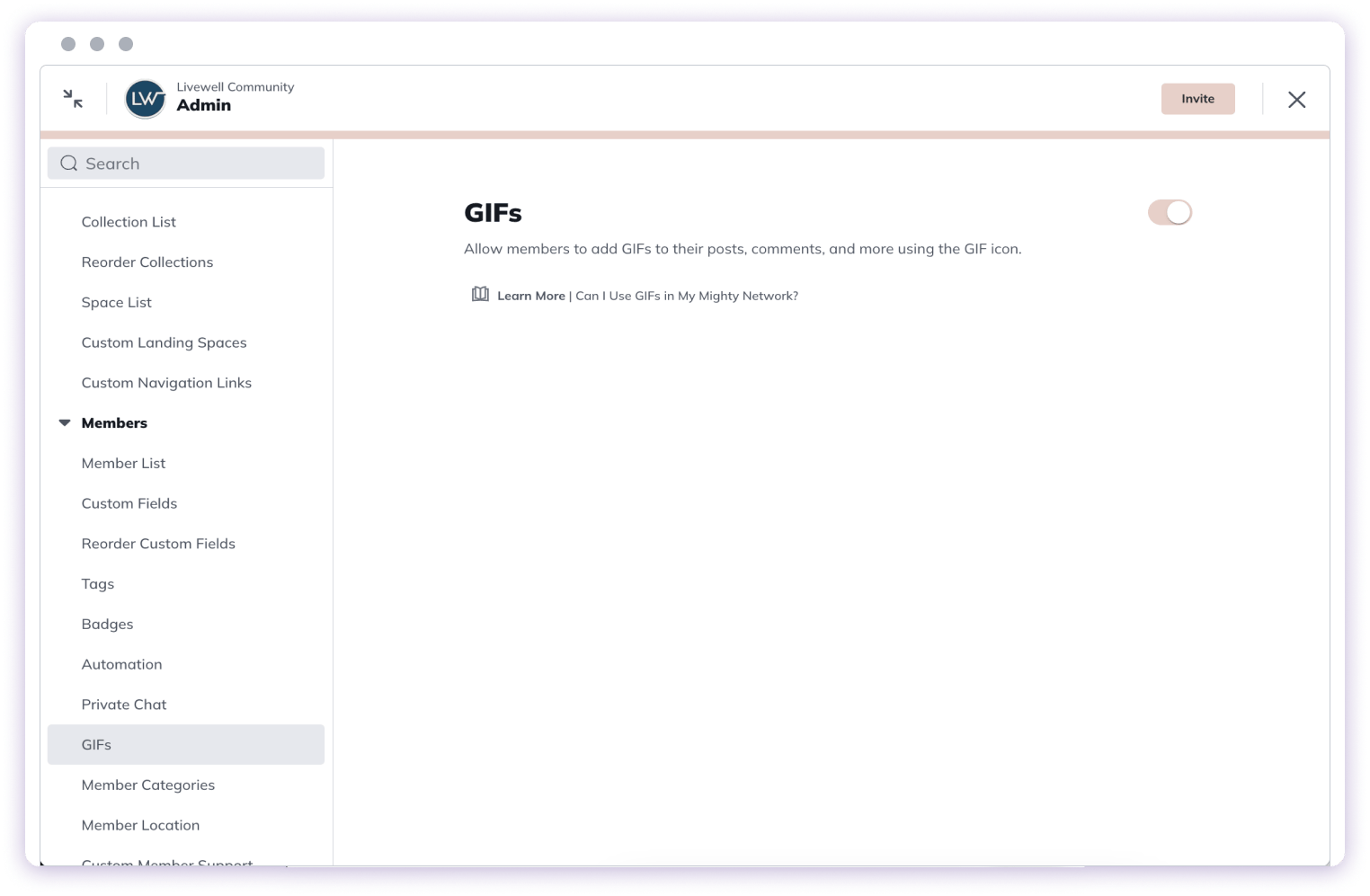
1. Go to **Admin > Members > GIFs.**
2. Toggle **GIFs** on to allow members to post GIFs.
3. Toggle **GIFs** off to remove the GIF picker from all areas of your Network.
[
](/images/for-hosts/content-and-messaging/can-i-use-gifs-in-my-mighty-network/8546504989453)
## Adding a GIF to an Article
1. Save the GIF file (as a **.gif**) to your device.
2. In your Article, select **Add Image**.
3. Upload the saved GIF file.
## Content Ratings and Usage
All GIFs available through the built-in picker are rated **G/PG** and provided by **Tenor**.
**Note:** You cannot use Tenor GIFs for commercial purposes or on behalf of third parties.
## How to Turn GIFs On or Off in Your Network
Hosts can manage GIF access for all members.
1. Go to **Admin > Members > GIFs.**
2. Toggle **GIFs** on to allow members to post GIFs.
3. Toggle **GIFs** off to remove the GIF picker from all areas of your Network.
[ ](/images/for-hosts/content-and-messaging/can-i-use-gifs-in-my-mighty-network/gifs.png)
## How to Turn Off GIF Autoplay (Personal Setting)
If you prefer that GIFs don’t autoplay on your account:
1. Go to **Personal Settings > Appearance and Sounds.**
2. Toggle off **Autoplay GIFs.**
This stops GIFs from automatically looping while you scroll.
](/images/for-hosts/content-and-messaging/can-i-use-gifs-in-my-mighty-network/gifs.png)
## How to Turn Off GIF Autoplay (Personal Setting)
If you prefer that GIFs don’t autoplay on your account:
1. Go to **Personal Settings > Appearance and Sounds.**
2. Toggle off **Autoplay GIFs.**
This stops GIFs from automatically looping while you scroll.