> ## Documentation Index
> Fetch the complete documentation index at: https://docs.mightynetworks.com/llms.txt
> Use this file to discover all available pages before exploring further.
# Can I Use External Embeds?
**Radically expand** what your Mighty Network can do by embedding over **2,000 services** that look great on web, iOS, and Android.
Our embeds support a wide range of providers, including video, audio, images, slideshows, playlists, podcasts, maps, 3D content, forms, documents, puzzles, quizzes, graphs, infographics, and more
You can search for embeds that we support on [our website here](https://www.mightynetworks.com/features/embeds).
For additional embeds we support, [check out this article](https://docs.mightynetworks.com/for-hosts/content-and-messaging/additional-embeds).
## How to Embed
Embeds can be added to [**Articles**](https://docs.mightynetworks.com/for-hosts/content-and-messaging/how-do-i-create-an-article-in-my-mighty-network), [**Posts**](https://docs.mightynetworks.com/for-hosts/content-and-messaging/how-do-i-create-a-post-in-my-mighty-network), [**Events**](https://docs.mightynetworks.com/for-hosts/events-and-livestream/how-do-i-create-events-in-my-mighty-network), [**Courses**](https://docs.mightynetworks.com/for-hosts/courses/how-do-i-build-a-course-in-my-mighty-network), and the [**Page**](https://docs.mightynetworks.com/for-hosts/setting-up-your-network/how-do-i-add-features-to-a-space) feature to bring additional functionality into your Mighty Network.
To embed content, open the service you want to use and look for a **Share** or **Embed** option. Copy the link, then paste it into the embed field in Mighty Networks.
Each service handles embeds a little differently, so you may need to try a few link formats to find the one that works.
**A quick note:** In addition to digital goods sales being required to adhere to mobile platform policies, most 3rd-party e-commerce services don't offer a full purchase experience within iframes, for cross-domain security reasons. We suggest either utilizing our [built-in payment features](https://docs.mightynetworks.com/for-hosts/payments-and-access/how-do-i-create-a-plan) or exploring our [support for external payment systems](https://docs.mightynetworks.com/for-hosts/payments-and-access/can-i-take-payments-off-platform).
## Authenticated iFrames
For Hosts on the [Scale Plan](https://docs.mightynetworks.com/for-hosts/meet-mighty/whats-included-in-the-mighty-networks-business-plan#whats-included-in-the-mighty-networks-scale-plan) and above who are building custom applications with Mighty's [Headless API](https://docs.mightynetworks.com/for-hosts/analytics-and-integrations/does-mighty-networks-have-an-api), authenticated embeds allow members to access embedded experiences using their existing Mighty account.
Examples include:
* AI-powered tools and assistants
* Custom member dashboards and portals
* Calculators, assessments, and interactive applications
* Applications built with Mighty's Headless API
When creating an embed, eligible Hosts may see an option to require authentication.
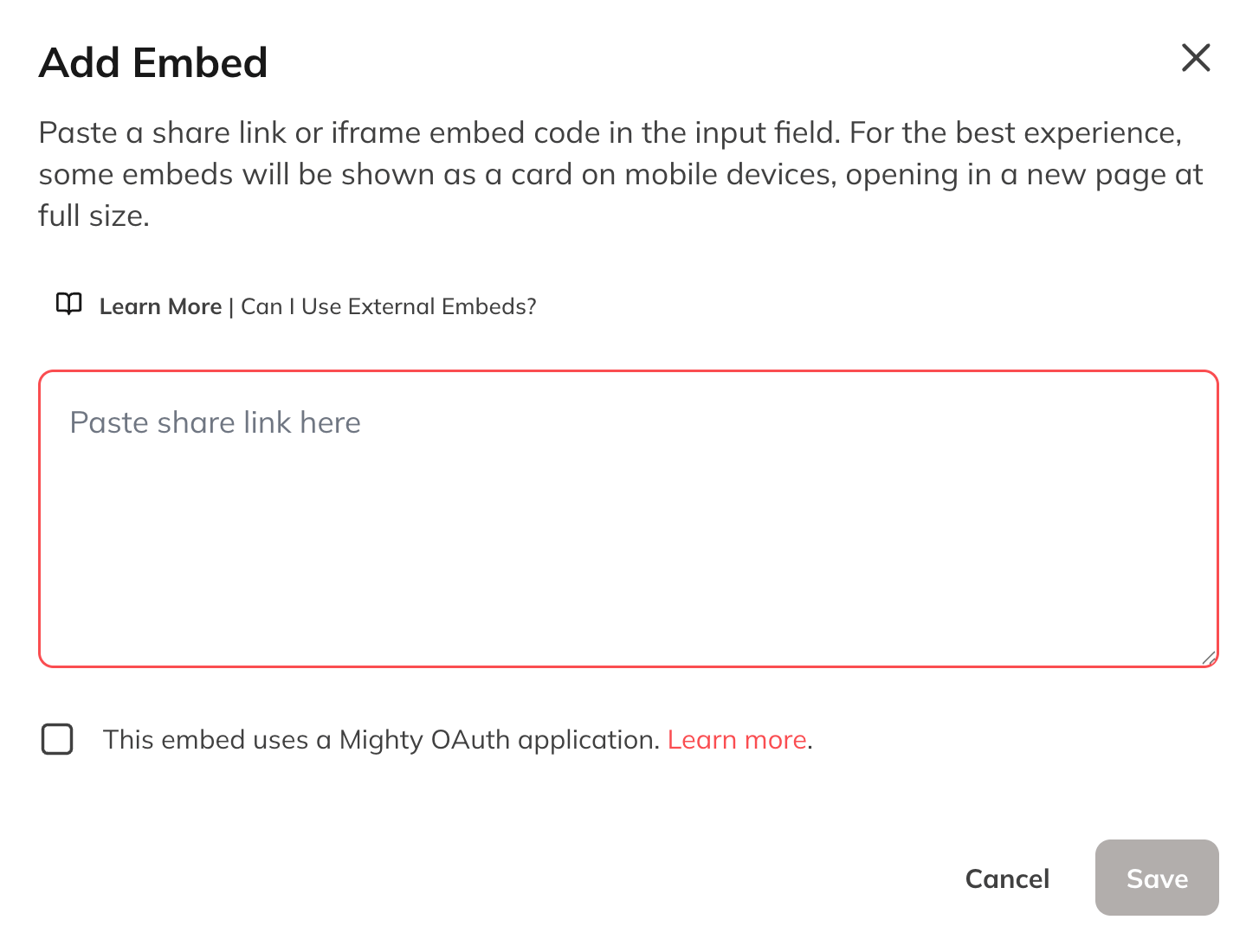 If the checkbox is selected, members who aren't signed in will be prompted to sign in or join the Mighty Network before accessing the experience.
Because authentication is handled through Mighty and your application's OAuth integration, members don't need a separate login. This creates a seamless experience where members can connect your application, review the requested permissions, and get started right away.
**Things to know:**
* Your application must be integrated with Mighty's Headless API and OAuth infrastructure.
* Signing out of Mighty does not automatically sign members out of the embedded application.
* This feature is available on web and mobile.
* On Free Plans, iFrame embeds continue to follow the existing approval process and allow-list requirements.
You can learn more in our [Headless API](https://docs.mightynetworks.com/for-hosts/analytics-and-integrations/does-mighty-networks-have-an-api) and [OAuth](https://docs.mightynetworks.com/for-hosts/analytics-and-integrations/how-do-i-manage-oauth-applications) documentation.
## Specific Embed Provider Instructions
We connect with thousands of well known apps today! Check out the specific embed instructions for your favorites:
## Canva
* Use the “Smart embed link” not the “HTML embed code"
## Calendly
* Use “Share Link” not “Add times to email” or “Add to website”
## Notion
* Due to limitations on the Notion side, Notion embeds only display a link card instead of a fully-interactive embed. If embedding Notion is important to you, you can consider using a third-party option like [Embed Notion](https://embednotion.com/)
## Instagram
* The copy embed code from Instagram is not an iframe and won't work. It will only work via a share link. If the account is private then the embed will not show.
## Video
* For Posts, simply paste the video’s URL into the text area, then press Enter to automatically display the embedded version.
* For an [Article](https://docs.mightynetworks.com/for-hosts/content-and-messaging/how-do-i-create-an-article-in-my-mighty-network), an [Event](https://docs.mightynetworks.com/for-hosts/events-and-livestream/how-do-i-create-events-in-my-mighty-network), or the materials inside of the Table of Contents, you can embed video directly by using the "Add Video" option when you open up the + button.
* Copy the full URL where the video is hosted (not the full embed code or the Share Links for other Platforms), paste it into the field where you see "Video URL," and add an optional thumbnail. The video will then be embedded directly into your content, and members can watch it without leaving your Mighty Network.
## YouTube
* You can embed YouTube videos that are set to **Unlisted**, but not **Private**.
* Vertically filmed videos may display a zoomed-in horizontal thumbnail.
* Grainy or incorrect thumbnails will not be recognized. If your thumbnail isn’t displaying correctly, check your YouTube video settings and make sure it meets YouTube’s recommended specs (1280 × 720).
### Forcing Closed Captions On
To force closed captioning to play automatically on an embedded YouTube video:
1. Log in to your YouTube account and open **YouTube Studio**.
2. In the left menu, go to **Content** and select your video.
3. Click the **pencil icon** to open video details.
4. Scroll to **Show More**.
5. In the **Tags** section, add:**yt:cc=on**
6. Click **Save**.
7. *Please note that closed captioning does not work on iOS for YouTube videos due to restrictions with Apple.*
### About multiple caption tracks
If your video includes multiple caption languages, switching between them won’t be available in the embedded player. The embed will display only the first caption track.
## Vimeo
If you're embedding **private videos** from Vimeo, there's one additional step required to ensure the videos play on the web and in the [**Mighty Networks iOS and Android apps**](https://docs.mightynetworks.com/for-hosts/setting-up-your-network/does-mighty-networks-have-an-app).
When adjusting the [privacy settings](https://vimeo.zendesk.com/hc/en-us/articles/224817847-Privacy-settings-overview) for each video on **Vimeo.com**:
1. Set the privacy option to **Hide from Vimeo**.
2. Under **Where can this video be embedded?**, choose **Specific domains**.
3. Add **both** of the following approved domains:
* Your Mighty Network's [**custom domain**](https://docs.mightynetworks.com/for-hosts/admin-and-moderation/can-i-use-my-own-web-domain-with-mighty-networks)
* **mn.co**\*(The video will not play in the mobile apps if “mn.co” is not included.)\*
4. Set the embed sizing to **Fixed**, not **Responsive**.
Showcases (playlists) cannot be embedded at this time.
Here is an example of how this was configured for a video embedded in Mighty Community:
## Searchie (Membership.io)
* Searchie does not offer an API for course progress tracking. If you want to track progress within a Course, use **native video uploads** or **YouTube** instead.
* We also do not currently support embedding Searchie widgets.
## Wistia, Loom, Dailymotion, and Rutube
You can embed videos from **Wistia**, **Loom**, **Dailymotion**, and **Rutube** by using **Insert Embed** when creating or editing an **Article**, an **Event**, or any material inside a **Table of Contents**.
1. Copy the **video URL** (not the full embed code).
2. Paste it into the embed field.
3. The video will appear directly in your content.
\*\**Closed captioning does not work on iOS for Loom videos due to Apple restrictions.*
## Grain
You can embed videos from **Grain** by using **Insert Embed** when creating or editing an **Article**, an **Event**, or any material inside a **Table of Contents**.
1. Copy the **video URL** from Grain (either a recording URL like `grain.com/share/recording/...` or a highlight URL like `grain.co/highlight/...`).
2. Paste it into the embed field.
3. The video will appear directly in your content.
Grain uses iframe embeds and supports both recording URLs and highlight URLs.
## Music Playlists
## SoundCloud
Use the **full embed code**, not just the link, to ensure the playlist or track embeds correctly.
## MP3 Audio Files
Copy the full **.mp3 file URL** from its host, paste it into the embed field, and it will embed directly in your content.
## Google Maps
### In Google Maps
1. Search for the location.
2. Click the location you want to embed.
3. Select the **Share** icon.
4. Choose **Embed a map**.
5. Select a size and click **Copy HTML**.
### In your Mighty Network
1. Open the Article where you want to embed the map.
2. Click inside the body of the Article.
3. Select the **+** icon.
4. Choose **Embed**.
5. Paste the HTML code from Google Maps.
**Note:** Maps created using Google’s **Custom Maps** feature cannot be embedded.
## Typeform
To embed a Typeform, paste the **default form URL** into the embed field.Do **not** use the full embed code or a customized Typeform link—only the default link from the Typeform **Share** page is supported.
## Google Slides, Google Docs, and More
To embed a Google Slides presentation:
1. Open the presentation.
2. Go to **File > Share > Publish to Web**.
3. Select **Embed** and copy the embed code.
4. Use **Insert Embed** in an Article, Event, or Lesson to add it.
If the checkbox is selected, members who aren't signed in will be prompted to sign in or join the Mighty Network before accessing the experience.
Because authentication is handled through Mighty and your application's OAuth integration, members don't need a separate login. This creates a seamless experience where members can connect your application, review the requested permissions, and get started right away.
**Things to know:**
* Your application must be integrated with Mighty's Headless API and OAuth infrastructure.
* Signing out of Mighty does not automatically sign members out of the embedded application.
* This feature is available on web and mobile.
* On Free Plans, iFrame embeds continue to follow the existing approval process and allow-list requirements.
You can learn more in our [Headless API](https://docs.mightynetworks.com/for-hosts/analytics-and-integrations/does-mighty-networks-have-an-api) and [OAuth](https://docs.mightynetworks.com/for-hosts/analytics-and-integrations/how-do-i-manage-oauth-applications) documentation.
## Specific Embed Provider Instructions
We connect with thousands of well known apps today! Check out the specific embed instructions for your favorites:
## Canva
* Use the “Smart embed link” not the “HTML embed code"
## Calendly
* Use “Share Link” not “Add times to email” or “Add to website”
## Notion
* Due to limitations on the Notion side, Notion embeds only display a link card instead of a fully-interactive embed. If embedding Notion is important to you, you can consider using a third-party option like [Embed Notion](https://embednotion.com/)
## Instagram
* The copy embed code from Instagram is not an iframe and won't work. It will only work via a share link. If the account is private then the embed will not show.
## Video
* For Posts, simply paste the video’s URL into the text area, then press Enter to automatically display the embedded version.
* For an [Article](https://docs.mightynetworks.com/for-hosts/content-and-messaging/how-do-i-create-an-article-in-my-mighty-network), an [Event](https://docs.mightynetworks.com/for-hosts/events-and-livestream/how-do-i-create-events-in-my-mighty-network), or the materials inside of the Table of Contents, you can embed video directly by using the "Add Video" option when you open up the + button.
* Copy the full URL where the video is hosted (not the full embed code or the Share Links for other Platforms), paste it into the field where you see "Video URL," and add an optional thumbnail. The video will then be embedded directly into your content, and members can watch it without leaving your Mighty Network.
## YouTube
* You can embed YouTube videos that are set to **Unlisted**, but not **Private**.
* Vertically filmed videos may display a zoomed-in horizontal thumbnail.
* Grainy or incorrect thumbnails will not be recognized. If your thumbnail isn’t displaying correctly, check your YouTube video settings and make sure it meets YouTube’s recommended specs (1280 × 720).
### Forcing Closed Captions On
To force closed captioning to play automatically on an embedded YouTube video:
1. Log in to your YouTube account and open **YouTube Studio**.
2. In the left menu, go to **Content** and select your video.
3. Click the **pencil icon** to open video details.
4. Scroll to **Show More**.
5. In the **Tags** section, add:**yt:cc=on**
6. Click **Save**.
7. *Please note that closed captioning does not work on iOS for YouTube videos due to restrictions with Apple.*
### About multiple caption tracks
If your video includes multiple caption languages, switching between them won’t be available in the embedded player. The embed will display only the first caption track.
## Vimeo
If you're embedding **private videos** from Vimeo, there's one additional step required to ensure the videos play on the web and in the [**Mighty Networks iOS and Android apps**](https://docs.mightynetworks.com/for-hosts/setting-up-your-network/does-mighty-networks-have-an-app).
When adjusting the [privacy settings](https://vimeo.zendesk.com/hc/en-us/articles/224817847-Privacy-settings-overview) for each video on **Vimeo.com**:
1. Set the privacy option to **Hide from Vimeo**.
2. Under **Where can this video be embedded?**, choose **Specific domains**.
3. Add **both** of the following approved domains:
* Your Mighty Network's [**custom domain**](https://docs.mightynetworks.com/for-hosts/admin-and-moderation/can-i-use-my-own-web-domain-with-mighty-networks)
* **mn.co**\*(The video will not play in the mobile apps if “mn.co” is not included.)\*
4. Set the embed sizing to **Fixed**, not **Responsive**.
Showcases (playlists) cannot be embedded at this time.
Here is an example of how this was configured for a video embedded in Mighty Community:
## Searchie (Membership.io)
* Searchie does not offer an API for course progress tracking. If you want to track progress within a Course, use **native video uploads** or **YouTube** instead.
* We also do not currently support embedding Searchie widgets.
## Wistia, Loom, Dailymotion, and Rutube
You can embed videos from **Wistia**, **Loom**, **Dailymotion**, and **Rutube** by using **Insert Embed** when creating or editing an **Article**, an **Event**, or any material inside a **Table of Contents**.
1. Copy the **video URL** (not the full embed code).
2. Paste it into the embed field.
3. The video will appear directly in your content.
\*\**Closed captioning does not work on iOS for Loom videos due to Apple restrictions.*
## Grain
You can embed videos from **Grain** by using **Insert Embed** when creating or editing an **Article**, an **Event**, or any material inside a **Table of Contents**.
1. Copy the **video URL** from Grain (either a recording URL like `grain.com/share/recording/...` or a highlight URL like `grain.co/highlight/...`).
2. Paste it into the embed field.
3. The video will appear directly in your content.
Grain uses iframe embeds and supports both recording URLs and highlight URLs.
## Music Playlists
## SoundCloud
Use the **full embed code**, not just the link, to ensure the playlist or track embeds correctly.
## MP3 Audio Files
Copy the full **.mp3 file URL** from its host, paste it into the embed field, and it will embed directly in your content.
## Google Maps
### In Google Maps
1. Search for the location.
2. Click the location you want to embed.
3. Select the **Share** icon.
4. Choose **Embed a map**.
5. Select a size and click **Copy HTML**.
### In your Mighty Network
1. Open the Article where you want to embed the map.
2. Click inside the body of the Article.
3. Select the **+** icon.
4. Choose **Embed**.
5. Paste the HTML code from Google Maps.
**Note:** Maps created using Google’s **Custom Maps** feature cannot be embedded.
## Typeform
To embed a Typeform, paste the **default form URL** into the embed field.Do **not** use the full embed code or a customized Typeform link—only the default link from the Typeform **Share** page is supported.
## Google Slides, Google Docs, and More
To embed a Google Slides presentation:
1. Open the presentation.
2. Go to **File > Share > Publish to Web**.
3. Select **Embed** and copy the embed code.
4. Use **Insert Embed** in an Article, Event, or Lesson to add it.