> ## Documentation Index
> Fetch the complete documentation index at: https://docs.mightynetworks.com/llms.txt
> Use this file to discover all available pages before exploring further.
# How Do I Customize My Member Support?
On the [**Launch Plan**](https://docs.mightynetworks.com/for-hosts/meet-mighty/whats-included-in-the-mighty-networks-courses-plan) and up, you can customize how your members reach out when they need help.
This feature lets you direct members to your own support resources—such as your team’s email or an external help site—instead of Mighty’s Customer Advocacy team.
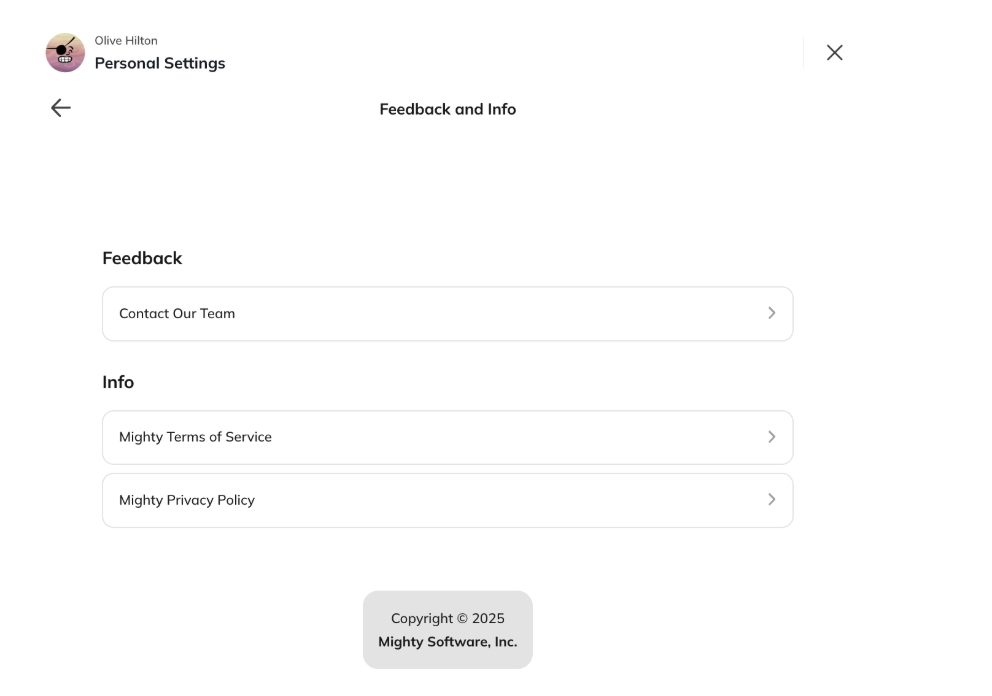
Customizing this link gives you full control over what appears when members select **Help Center** from their **Account > Feedback and Info**.
## How to Customize the Text and Link
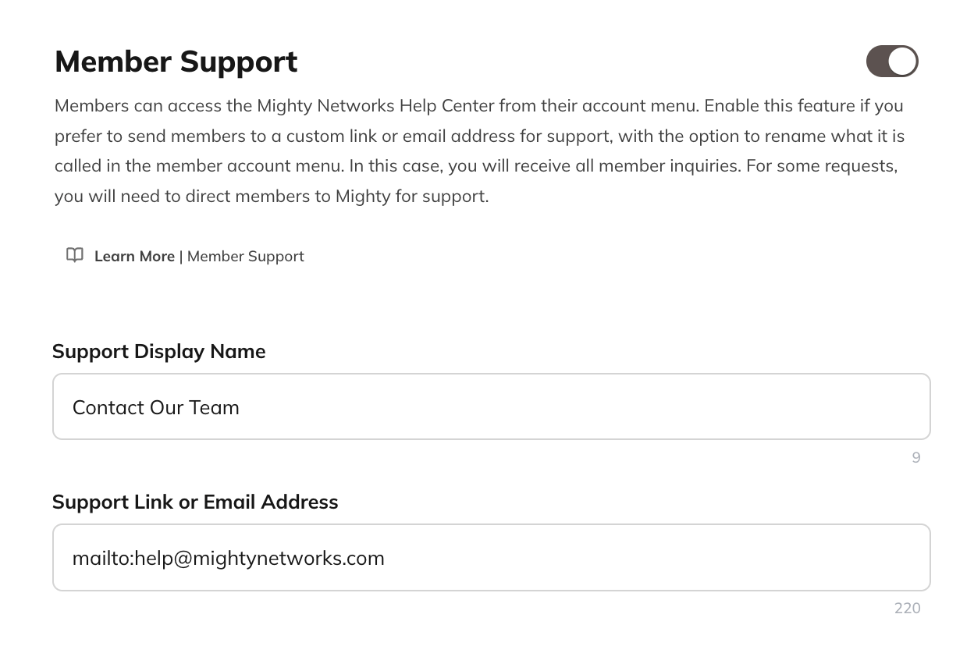
1. Go to **Admin > Members > Member Settings > Member Support.**
2. Toggle **Enable Member Support Customization** on.
3. Edit the **Help Center** text if you’d like to rename it.
4. Add a link destination:
* **URL:** Enter the external help site you want members to visit.
* **Email:** Enter an email address with the prefix mailto: (for example, mailto: [support@yourdomain.com](mailto:support@yourdomain.com)).
## Default Behavior
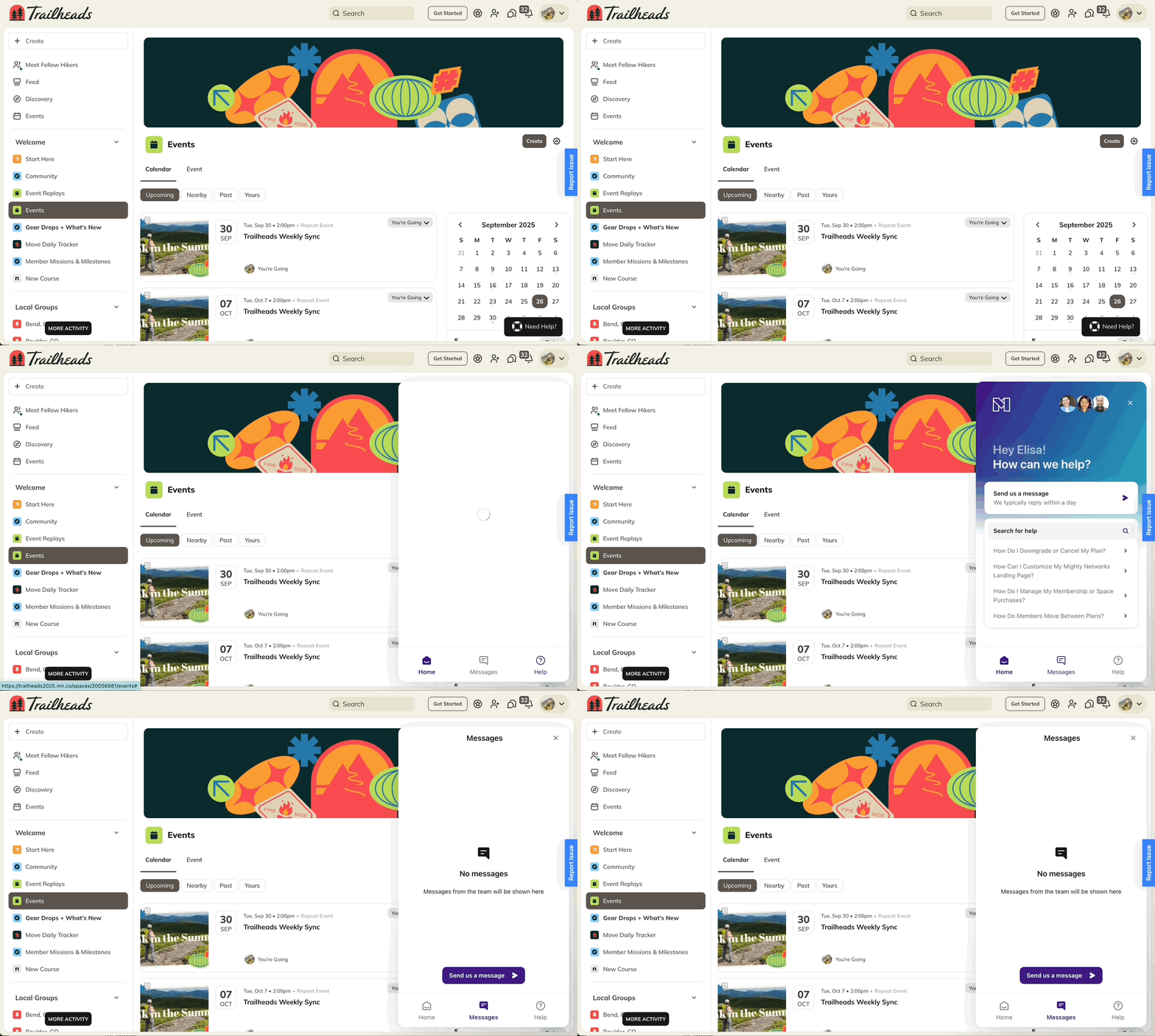
If you don’t enable or customize this feature, members who click **Help Center** will reach Mighty’s Customer Advocacy team through the same support chat you have access to as a Host.
If you’d prefer that members not chat with us—but don’t yet have a specific support URL or email—you can link them directly to Mighty’s member Help Center:[https://docs.mightynetworks.comcollections/2221497-for-members](https://docs.mightynetworks.comcollections/2221497-for-members)
## Account Removal Notice
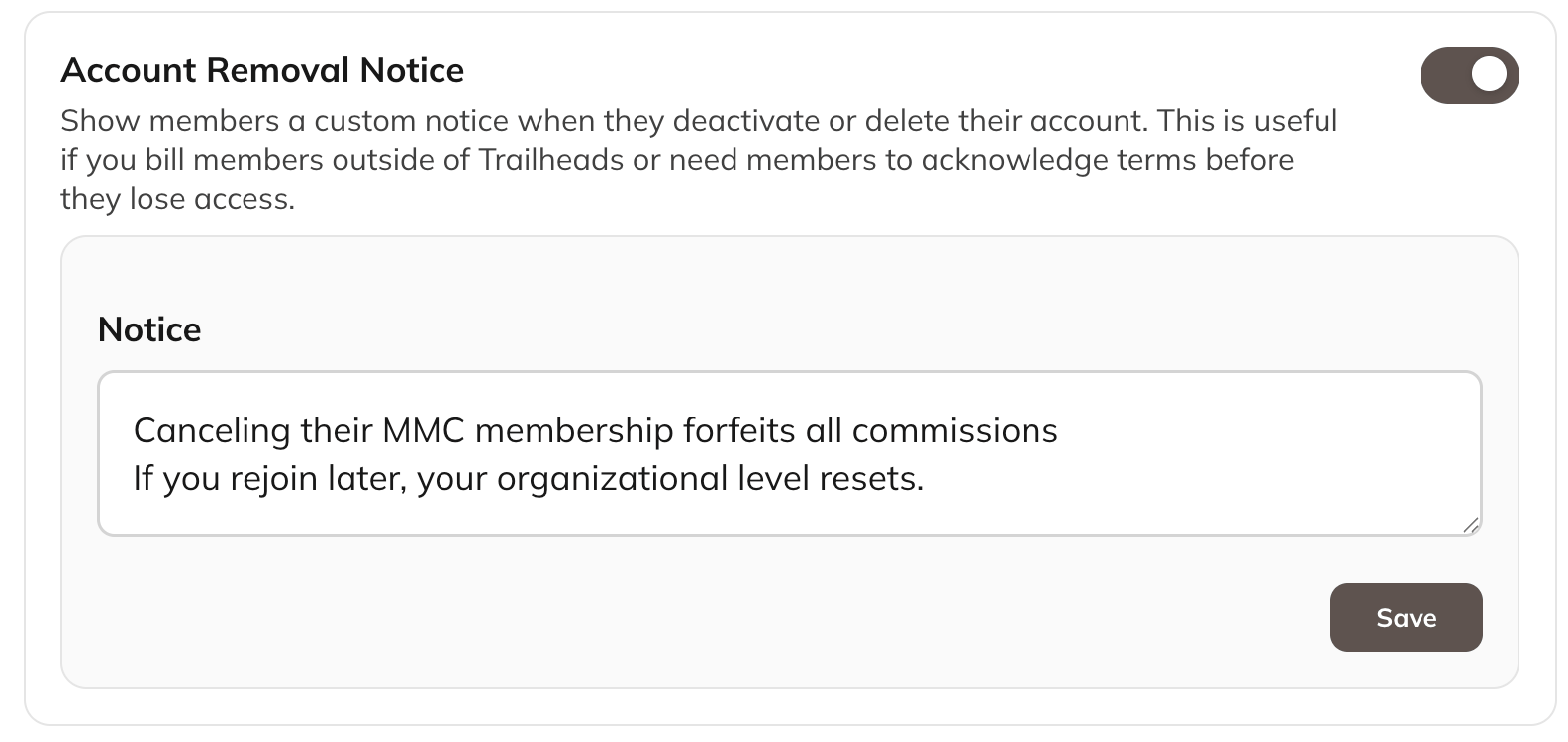
You can show members a custom message when they deactivate or delete their account. This is useful if you bill members outside of your Network, or if you need members to acknowledge specific terms before they lose access.
## How to Add a Custom Notice
1. Go to **Admin > Members > Member Settings > Account Removal Notice.**
2. Enable **Account Removal Notice**.
3. Enter your message in the **Notice** field.
4. Select **Save**.
## If You Don't Set Up a Custom Notice
If you don't enable this feature, members will see Mighty's standard messaging when they deactivate or delete their account.
## Need Help as a Host?
Our Customer Advocacy team is always available to support you. Reach out anytime using the **Need Help** button in the lower right corner of your Mighty Network on the web (and coming soon to mobile).
 ## How to Customize the Text and Link
1. Go to **Admin > Members > Member Settings > Member Support.**
2. Toggle **Enable Member Support Customization** on.
3. Edit the **Help Center** text if you’d like to rename it.
4. Add a link destination:
* **URL:** Enter the external help site you want members to visit.
* **Email:** Enter an email address with the prefix mailto: (for example, mailto: [support@yourdomain.com](mailto:support@yourdomain.com)).
## How to Customize the Text and Link
1. Go to **Admin > Members > Member Settings > Member Support.**
2. Toggle **Enable Member Support Customization** on.
3. Edit the **Help Center** text if you’d like to rename it.
4. Add a link destination:
* **URL:** Enter the external help site you want members to visit.
* **Email:** Enter an email address with the prefix mailto: (for example, mailto: [support@yourdomain.com](mailto:support@yourdomain.com)).
 ## Default Behavior
If you don’t enable or customize this feature, members who click **Help Center** will reach Mighty’s Customer Advocacy team through the same support chat you have access to as a Host.
If you’d prefer that members not chat with us—but don’t yet have a specific support URL or email—you can link them directly to Mighty’s member Help Center:[https://docs.mightynetworks.comcollections/2221497-for-members](https://docs.mightynetworks.comcollections/2221497-for-members)
## Account Removal Notice
You can show members a custom message when they deactivate or delete their account. This is useful if you bill members outside of your Network, or if you need members to acknowledge specific terms before they lose access.
## Default Behavior
If you don’t enable or customize this feature, members who click **Help Center** will reach Mighty’s Customer Advocacy team through the same support chat you have access to as a Host.
If you’d prefer that members not chat with us—but don’t yet have a specific support URL or email—you can link them directly to Mighty’s member Help Center:[https://docs.mightynetworks.comcollections/2221497-for-members](https://docs.mightynetworks.comcollections/2221497-for-members)
## Account Removal Notice
You can show members a custom message when they deactivate or delete their account. This is useful if you bill members outside of your Network, or if you need members to acknowledge specific terms before they lose access.
 ## How to Add a Custom Notice
1. Go to **Admin > Members > Member Settings > Account Removal Notice.**
2. Enable **Account Removal Notice**.
3. Enter your message in the **Notice** field.
4. Select **Save**.
## If You Don't Set Up a Custom Notice
If you don't enable this feature, members will see Mighty's standard messaging when they deactivate or delete their account.
## Need Help as a Host?
Our Customer Advocacy team is always available to support you. Reach out anytime using the **Need Help** button in the lower right corner of your Mighty Network on the web (and coming soon to mobile).
## How to Add a Custom Notice
1. Go to **Admin > Members > Member Settings > Account Removal Notice.**
2. Enable **Account Removal Notice**.
3. Enter your message in the **Notice** field.
4. Select **Save**.
## If You Don't Set Up a Custom Notice
If you don't enable this feature, members will see Mighty's standard messaging when they deactivate or delete their account.
## Need Help as a Host?
Our Customer Advocacy team is always available to support you. Reach out anytime using the **Need Help** button in the lower right corner of your Mighty Network on the web (and coming soon to mobile).