> ## Documentation Index
> Fetch the complete documentation index at: https://docs.mightynetworks.com/llms.txt
> Use this file to discover all available pages before exploring further.
# How Do I View As A Member?
**Member view (available on the [Launch plan and up](https://docs.mightynetworks.com/for-hosts/meet-mighty/whats-included-in-the-mighty-networks-courses-plan#whats-included-in-the-mighty-networks-launch-plan))** lets you preview your Mighty Network from different member perspectives so you can confirm what people see and access.
Member view consists of three preview experiences:
* **View as a specific member**
* **View as a plan member**
* **View a plan join flow**
These tools help you understand how access, plans, and onboarding appear to members across your Network.
Member view is available on **web** and is designed for **Network Hosts**.
### **Why Use Member View?**
Member view helps you verify that your Network experience works exactly as intended.
You can use it to:
* Confirm what members can access based on their plan
* Troubleshoot questions about gated content
* Check visibility across Spaces and Collections
* Preview promotional banners or targeted content
* Validate plan setup before sharing a plan
* Resolve member support questions faster
View as specific member and view as plan member are **read-only**, which protects member privacy while letting you explore the Network from their perspective.
## View as a Specific Member
To preview your Network as a member:
1. Go to Admin > **Members**
2. Select the member you want to view as.
3. Click the \*\*three dot menu > \*\*“View as \[Member Name ie: Bob]”.
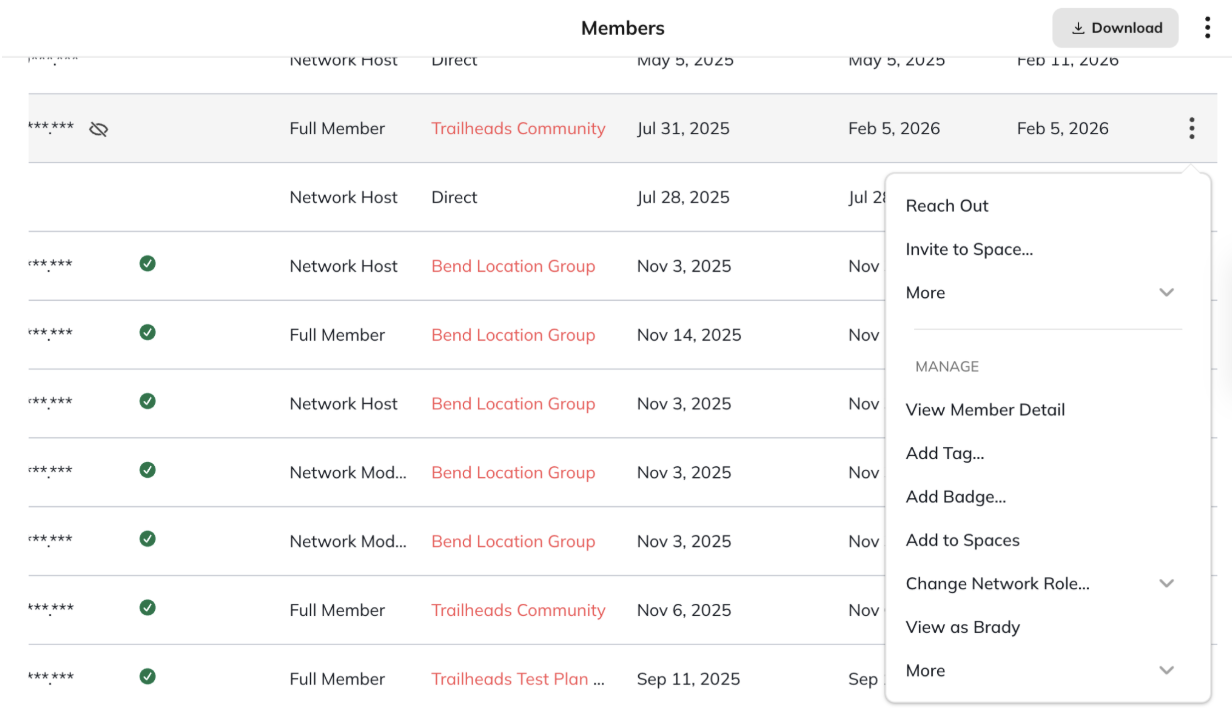 You can also find this three dot menu on:
* The [member detail page](https://docs.mightynetworks.com/for-hosts/admin-and-moderation/what-is-the-member-detail-page#what-is-the-member-detail-page)
* Member profiles
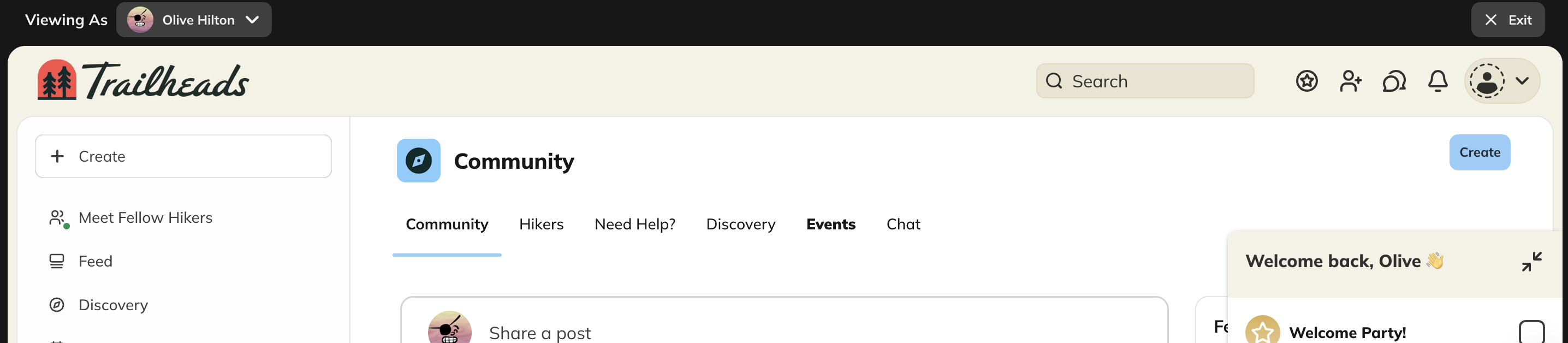
When you view as the member, you will see a bar at the top of your screen.
You can also find this three dot menu on:
* The [member detail page](https://docs.mightynetworks.com/for-hosts/admin-and-moderation/what-is-the-member-detail-page#what-is-the-member-detail-page)
* Member profiles
When you view as the member, you will see a bar at the top of your screen.
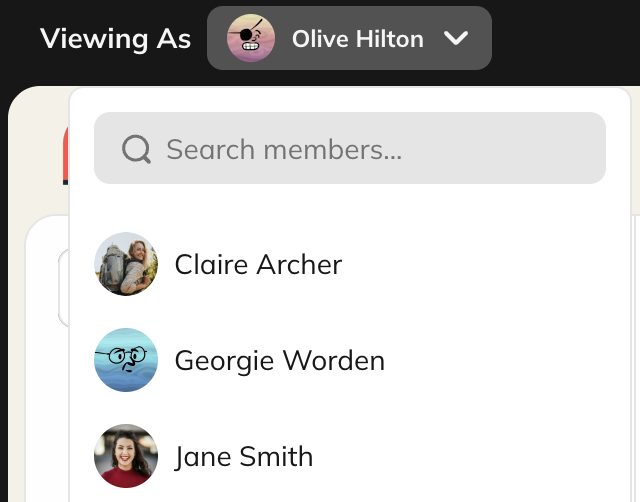
 Selecting the dropdown will allow you to switch between available members:
 When you’re finished, click “Exit” in the upper right corner to return to your account.
**Important note: If you are logged into a different account on the same browser (but a different tab), it will disrupt the member view experience. We recommend opening up a new browser window before viewing as a member.**
## **What You Can and Can’t Do in the Specific Member View**
### **You can:**
* Navigate your Network as that member
* View Spaces, Collections, and content available to them
* Confirm plan-based access and visibility
* Confirm notification settings
### **You can’t:**
* Send messages or access direct messages
* Post, comment, react, or edit content
* Make purchases or join spaces
* Change account settings
* View sensitive information such as payment details
* View as Network moderators
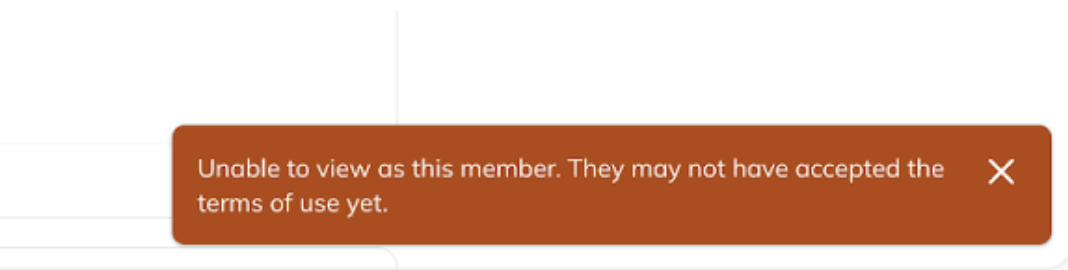
* View as members who haven’t accepted our terms of use (see screenshot)
When you’re finished, click “Exit” in the upper right corner to return to your account.
**Important note: If you are logged into a different account on the same browser (but a different tab), it will disrupt the member view experience. We recommend opening up a new browser window before viewing as a member.**
## **What You Can and Can’t Do in the Specific Member View**
### **You can:**
* Navigate your Network as that member
* View Spaces, Collections, and content available to them
* Confirm plan-based access and visibility
* Confirm notification settings
### **You can’t:**
* Send messages or access direct messages
* Post, comment, react, or edit content
* Make purchases or join spaces
* Change account settings
* View sensitive information such as payment details
* View as Network moderators
* View as members who haven’t accepted our terms of use (see screenshot)
 ## **View as a Plan Member**
This option lets you preview your Network as a **member who has joined a specific plan**.
Mighty generates a simulated **plan member**, which shows exactly what someone on that plan would experience after joining.
This is useful when you want to confirm:
* which Spaces the plan unlocks
* how gated content appears
* what members can access after purchase
Like the specific member view, this experience is **read-only**.
### **Simulated plan members:**
* Do **not appear** in your Network
* Do **not trigger automations**
* Do **not appear in analytics or queries**
* Are automatically removed after use
### **How to View as a Plan Member**
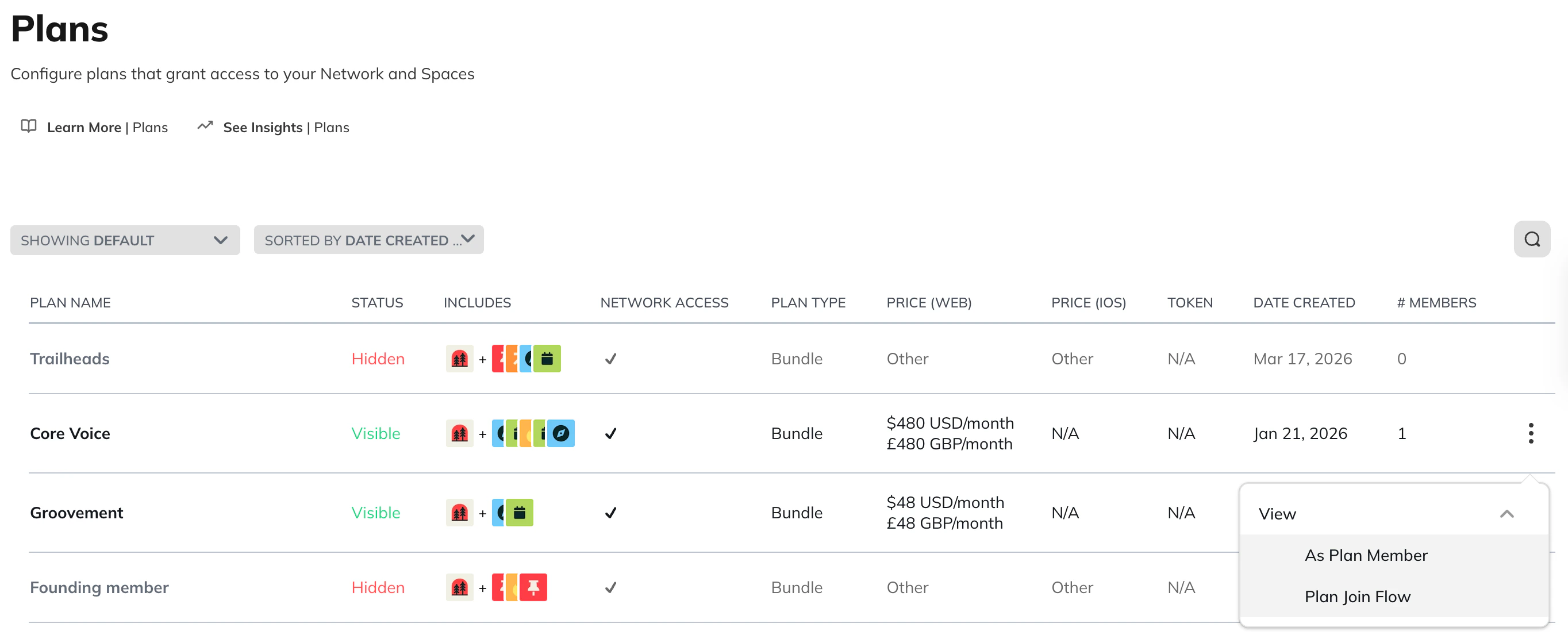
1. Go to **Admin > Plans and Access > Plans**.
2. Find the plan you want to preview.
3. Select the **three-dot menu**.
4. Select **View as Plan Member**.
You can also access this option from the **plan detail page**.
## **View as a Plan Member**
This option lets you preview your Network as a **member who has joined a specific plan**.
Mighty generates a simulated **plan member**, which shows exactly what someone on that plan would experience after joining.
This is useful when you want to confirm:
* which Spaces the plan unlocks
* how gated content appears
* what members can access after purchase
Like the specific member view, this experience is **read-only**.
### **Simulated plan members:**
* Do **not appear** in your Network
* Do **not trigger automations**
* Do **not appear in analytics or queries**
* Are automatically removed after use
### **How to View as a Plan Member**
1. Go to **Admin > Plans and Access > Plans**.
2. Find the plan you want to preview.
3. Select the **three-dot menu**.
4. Select **View as Plan Member**.
You can also access this option from the **plan detail page**.
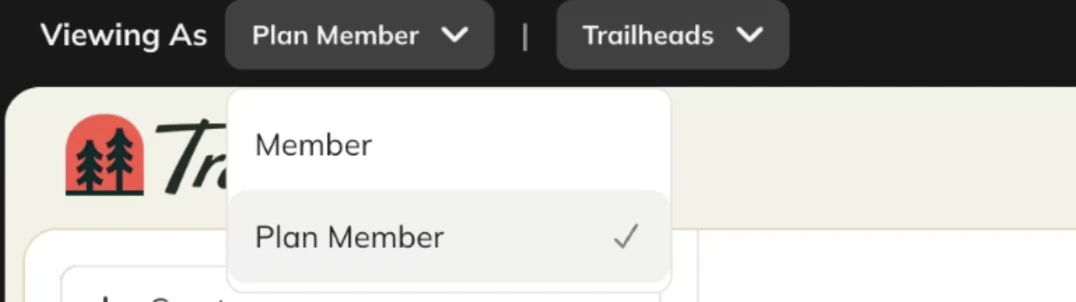
 While viewing the preview, use the dropdown at the top of the screen to:
* switch between plans
* switch to viewing your Network as a specific member
While viewing the preview, use the dropdown at the top of the screen to:
* switch between plans
* switch to viewing your Network as a specific member
 ## **View a Plan Join Flow**
This option lets you preview the **full join experience** for a plan.
You can simulate how someone joins a plan, including:
* free plans
* paid plans
* gated plans
* plans that grant access to Spaces or the Network.
### **How to View as Plan Join Flow**
1. Go to **Admin > Plans and Access > Plans**.
2. Select the **three-dot menu** next to the plan.
3. Select **View as Plan Join Flow**.
You can also access this option from the **plan detail page**.
Note: You must first generate a [**share link** for the plan.](https://docs.mightynetworks.com/for-hosts/payments-and-access/how-do-i-create-a-plan#share-link)
## **Configure Your Join Flow Preview**
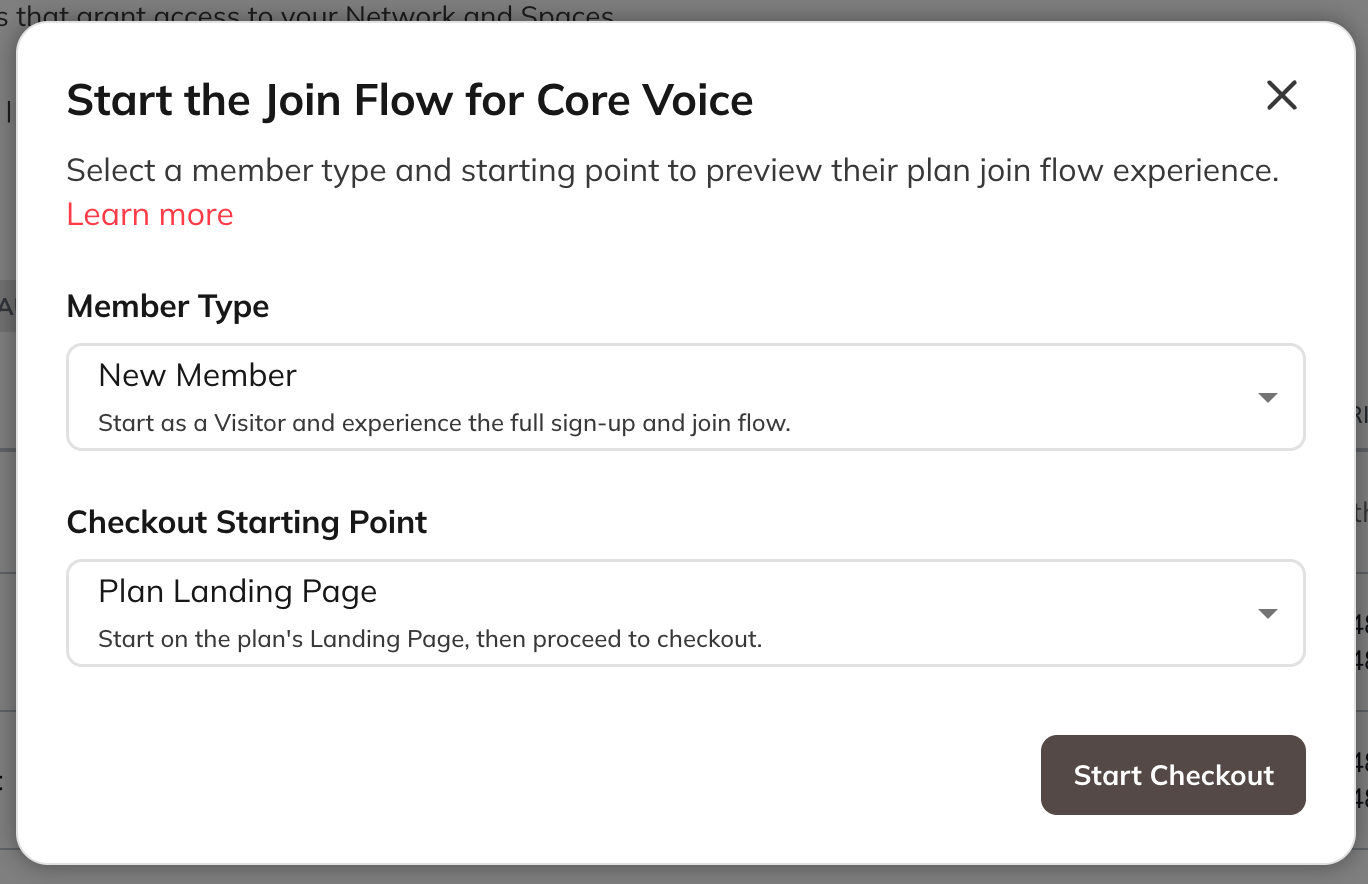
When starting the preview, select:
### **Member type**
* **New member**
* Start as a Visitor and experience the full sign-up flow
* **Full member**
* Start as an existing member of your network and experience purchasing this plan.
## **View a Plan Join Flow**
This option lets you preview the **full join experience** for a plan.
You can simulate how someone joins a plan, including:
* free plans
* paid plans
* gated plans
* plans that grant access to Spaces or the Network.
### **How to View as Plan Join Flow**
1. Go to **Admin > Plans and Access > Plans**.
2. Select the **three-dot menu** next to the plan.
3. Select **View as Plan Join Flow**.
You can also access this option from the **plan detail page**.
Note: You must first generate a [**share link** for the plan.](https://docs.mightynetworks.com/for-hosts/payments-and-access/how-do-i-create-a-plan#share-link)
## **Configure Your Join Flow Preview**
When starting the preview, select:
### **Member type**
* **New member**
* Start as a Visitor and experience the full sign-up flow
* **Full member**
* Start as an existing member of your network and experience purchasing this plan.
 Note: Viewing as a **full member** includes Network access, even if the plan only includes a Space.
To test a **limited member experience**, select:
* Go to a plan that grants access only to a Space or Spaces
* View As Plan Member
* Select:
* **New member**
* Whatever checkout starting point you would like
### **Join Flow Starting point**
You can preview the flow from different steps:
* Plan Landing Page
* Create Account (Full members go directly to gates: screening questions, approvals or payment)
* Sign In (Full members go directly to gates: screening questions, approvals or payment)
During the preview, you can select **Skip this Step** to move forward in the flow.
Note: Viewing as a **full member** includes Network access, even if the plan only includes a Space.
To test a **limited member experience**, select:
* Go to a plan that grants access only to a Space or Spaces
* View As Plan Member
* Select:
* **New member**
* Whatever checkout starting point you would like
### **Join Flow Starting point**
You can preview the flow from different steps:
* Plan Landing Page
* Create Account (Full members go directly to gates: screening questions, approvals or payment)
* Sign In (Full members go directly to gates: screening questions, approvals or payment)
During the preview, you can select **Skip this Step** to move forward in the flow.
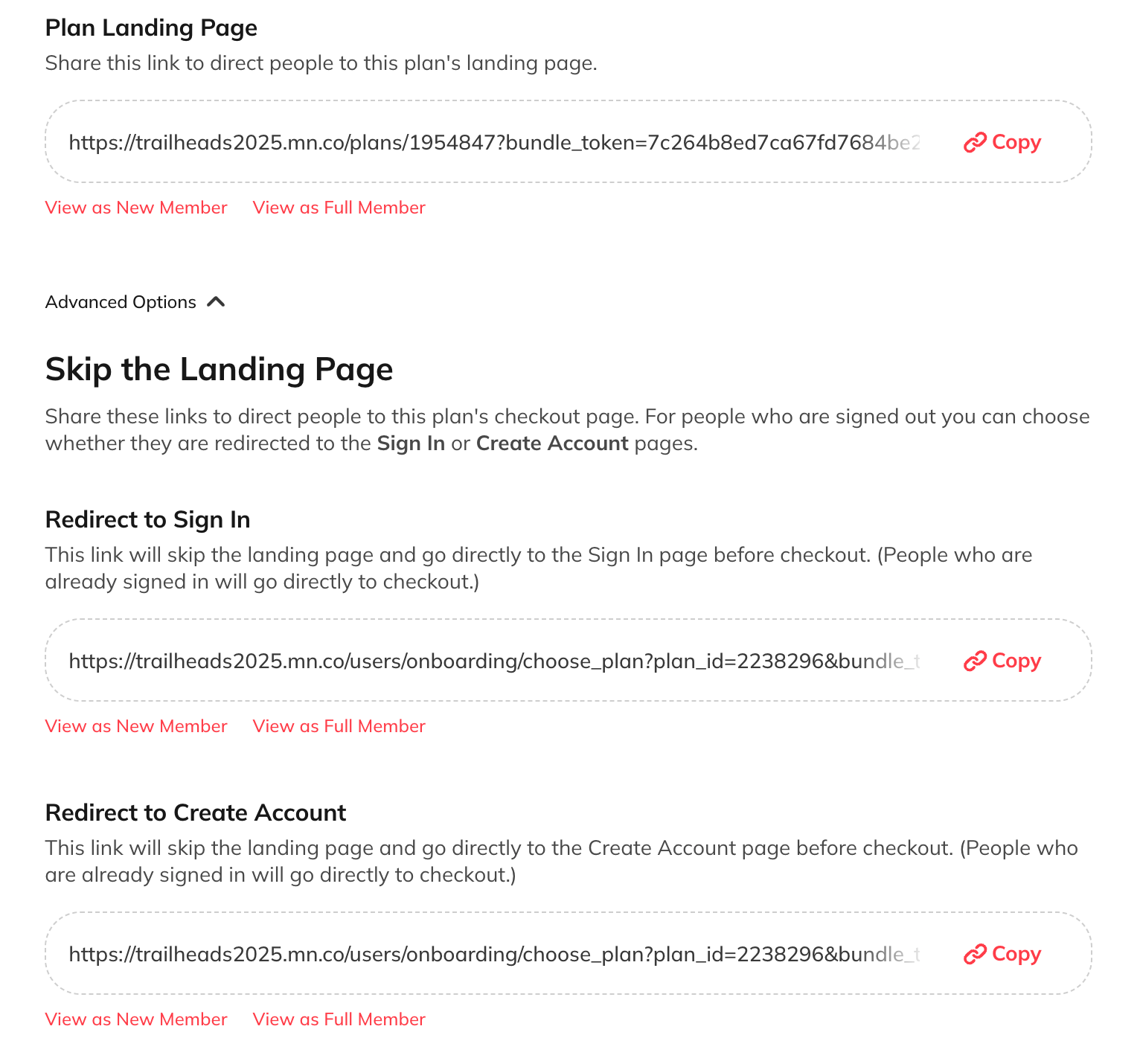
 Additionally, in the plan detail page you will see quick links beneath each of your share links so you can view the join flow as a new or a Full Member.
 ## **Known Limitations**
Some actions aren’t available during join flow preview.
These include:
* Entering promo codes
* Payment form interaction
* Signing out
* Switching plans mid-flow
* Email verification
* Multi-Factor Authentication
* Logging in with Social Sign On (google, facebook, etc.)
* Signing in
* Logging in with single sign-on (SSO)\*
* Exiting the plan flow\\
For [Networks using **SSO**,](https://docs.mightynetworks.com/for-hosts/analytics-and-integrations/how-do-i-enable-sso-for-my-mighty-network#how-do-i-enable-sso-for-my-mighty-network) you’ll see a screen indicating where SSO login appears during account creation.
For Networks with [**GDPR requirements**](https://docs.mightynetworks.com/for-hosts/privacy-security-accessibility/can-i-add-my-own-custom-terms-of-use-to-my-mighty-network#members-in-gdpr-countries), you’ll see the Terms of Use screen that members must accept during signup
## **Known Limitations**
Some actions aren’t available during join flow preview.
These include:
* Entering promo codes
* Payment form interaction
* Signing out
* Switching plans mid-flow
* Email verification
* Multi-Factor Authentication
* Logging in with Social Sign On (google, facebook, etc.)
* Signing in
* Logging in with single sign-on (SSO)\*
* Exiting the plan flow\\
For [Networks using **SSO**,](https://docs.mightynetworks.com/for-hosts/analytics-and-integrations/how-do-i-enable-sso-for-my-mighty-network#how-do-i-enable-sso-for-my-mighty-network) you’ll see a screen indicating where SSO login appears during account creation.
For Networks with [**GDPR requirements**](https://docs.mightynetworks.com/for-hosts/privacy-security-accessibility/can-i-add-my-own-custom-terms-of-use-to-my-mighty-network#members-in-gdpr-countries), you’ll see the Terms of Use screen that members must accept during signup